


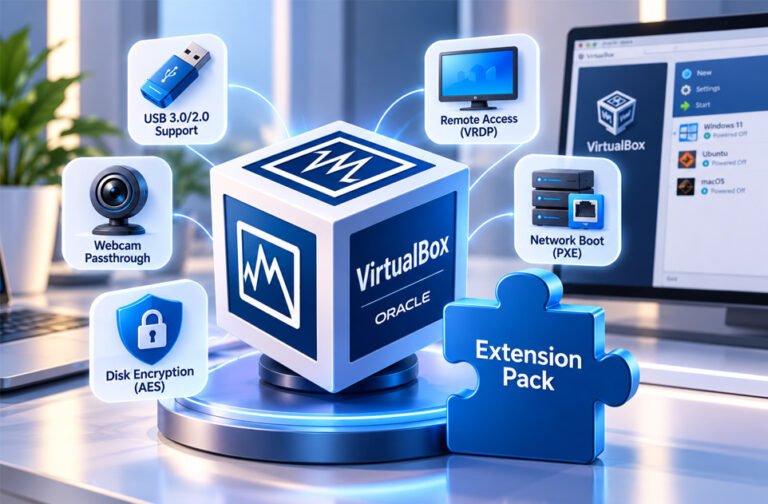
VirtualBox Extension Pack is an extra package for Oracle VM VirtualBox. It adds features that may not be available in the basic VirtualBox setup.
People often install it for USB support, webcam passthrough, remote access, and network boot features. This guide explains what VirtualBox Extension Pack is, its features and benefits, compatibility, installation, and common problems.
What Is VirtualBox Extension Pack?
VirtualBox Extension Pack is an extra package that adds more features to Oracle VM VirtualBox.
VirtualBox can run virtual machines without the Extension Pack. However, some advanced features may need it.
The package normally comes as a .vbox-extpack file. You install it on the host computer, not inside each virtual machine.
For example, suppose VirtualBox is installed on a Windows computer and you use it to run Linux. Windows is the host and Linux is the guest. The Extension Pack is installed with VirtualBox on the Windows host.
One Extension Pack file can work with supported VirtualBox host systems. Older Extension Pack versions are also available for people using older VirtualBox releases.
Features can change between VirtualBox versions. Because of this, an old guide may not always match the newest version.
VirtualBox Extension Pack vs Guest Additions
VirtualBox Extension Pack and Guest Additions are not the same thing.
The Extension Pack is added to VirtualBox on the host computer. It provides extra VirtualBox features.
Guest Additions are installed inside a virtual machine. They help the guest operating system work better with the host.
Guest Additions may provide features such as better display support, shared folders, mouse integration, and a shared clipboard.
| Component | Installed Where? | Main Purpose |
|---|---|---|
| VirtualBox Extension Pack | Host computer | Adds extra VirtualBox features |
| VirtualBox Guest Additions | Inside the virtual machine | Improves connection between host and guest |
Updating one does not automatically update the other. After updating VirtualBox, you may also need to update the Extension Pack and Guest Additions.
Main Features of VirtualBox Extension Pack
VirtualBox Extension Pack can add several useful features. The exact features can depend on the VirtualBox version you are using.
USB 2.0 and USB 3.0 Support
USB passthrough lets a virtual machine use a physical USB device connected to your computer.
This may include USB flash drives, external hard drives, network adapters, webcams, and other supported devices.
For example, you can connect a USB drive to your computer and then make it available inside your virtual machine.
Some VirtualBox versions require the Extension Pack for USB 2.0 or USB 3.0 features. Without the required package, VirtualBox may show an “Invalid settings detected” warning.
A USB device may still fail to work because of drivers, permissions, guest settings, or another program using the device.
Host Webcam Passthrough
Webcam passthrough lets a virtual machine use a webcam connected to the host computer.
For example, your Windows computer may recognize a webcam and then pass it to a guest virtual machine.
This feature can be useful for testing apps that need camera access or using supported communication apps inside a VM.
Compatibility depends on the webcam, drivers, guest operating system, and VirtualBox version.
VirtualBox Remote Desktop Protocol (VRDP)
VRDP stands for VirtualBox Remote Desktop Protocol. It lets you remotely access a virtual machine.
This can be useful when a VM is running on another computer or server.
VRDP works through the VirtualBox host. This means remote access may still be possible even if the virtual machine’s own network is not set up correctly. However, you still need network access to the host computer.
Remote access should be protected with proper security settings, authentication, and firewall rules.
PXE Network Boot
PXE stands for Preboot Execution Environment.
It allows a virtual machine to start using files provided over a network. For example, an IT team may use PXE to install an operating system without using a local installation disc or ISO in the normal way.
The collected information describes Intel PXE Boot ROM support. The network and TFTP settings must be prepared correctly before using this feature.
PXE is mainly useful for system administrators, IT teams, and testing environments.
Disk Encryption and Version-Specific Features
Older VirtualBox information also connects disk image encryption with the Extension Pack.
The collected information describes AES encryption using XTS mode with 128-bit or 256-bit encryption keys. This helps protect information stored in virtual disk files.
However, VirtualBox has changed over time. A feature that needed the Extension Pack in an older release may work differently in a newer release.
Always check the documentation for your VirtualBox version before assuming that a feature requires the Extension Pack.
Benefits of VirtualBox Extension Pack
The main benefit of the Extension Pack is that it gives VirtualBox extra features.
USB support can be useful when a VM needs direct access to a physical USB device. Webcam passthrough can help when testing apps that need camera access.
VRDP provides another way to access virtual machines remotely. PXE support can help with network-based operating system installation and testing.
These features can be useful for developers, testers, students, IT professionals, and system administrators.
However, you do not need the Extension Pack just to run a basic virtual machine. If you do not need its extra features, normal VirtualBox may be enough.
VirtualBox Extension Pack Compatibility
The Extension Pack should work with the VirtualBox version installed on your computer.
Using the wrong version can cause installation errors or stop some features from working.
Check your VirtualBox version before downloading the Extension Pack. Then choose the correct package for that release.
Older Extension Pack versions are available for people who still use older VirtualBox releases.
You should also understand the difference between the host and guest.
The host is your main physical computer. The guest is the operating system running inside the virtual machine.
The Extension Pack is installed on the host side. However, some features can still depend on the guest operating system, its drivers, and other settings.
VirtualBox Extension Pack Download
The safest option is to download VirtualBox Extension Pack from the official VirtualBox website.
The filename normally looks similar to:
Oracle_VirtualBox_Extension_Pack-[version].vbox-extpack
The version number changes with the release.
Check your VirtualBox version before downloading the package. Try to use the correct Extension Pack for that version.
Older packages are also available if you are using an older VirtualBox release.
Avoid downloading the Extension Pack from unknown websites. An unofficial copy could be old, changed, or unsafe.
After downloading the file, save it somewhere easy to find.
How to Install VirtualBox Extension Pack
You can install VirtualBox Extension Pack through the VirtualBox interface or with the VBoxManage command-line tool.
The normal interface is easier for most users.
Before installing, make sure the Extension Pack works with your VirtualBox version.
Install Through the VirtualBox Interface
Open VirtualBox and find the area used to manage extensions.
The exact menu can change between versions. Older versions may use Tools > Preferences > Extensions.
Choose the option to add an Extension Pack. Find the .vbox-extpack file you downloaded and open it.
VirtualBox will ask you to confirm the installation.
Read the license terms. If you agree, continue with the installation. You may also need to enter an administrator password.
After installation, check that the Extension Pack appears in the installed extensions list.
Install on Windows
Open VirtualBox on Windows and go to the Extensions area.
Choose the downloaded .vbox-extpack file and start the installation. Accept the license if you agree with its terms.
Windows may ask for administrator permission.
After installation, check the Extension Pack name and version to make sure it was installed correctly.
Install on macOS
The process on macOS is similar.
Open VirtualBox, find the Extensions area, and choose the downloaded Extension Pack.
Confirm the installation and accept the license terms if you agree. macOS may ask for your password or other permission.
Be careful when following old macOS tutorials. Instructions made for older macOS or VirtualBox versions may no longer work on newer versions.
Install on Linux
VirtualBox Extension Pack can also be installed on supported Linux systems.
You may be able to install it through the VirtualBox interface. Select the downloaded .vbox-extpack file and follow the instructions.
You can also use VBoxManage from the command line. Some Linux setups may require administrator permission.
Install VirtualBox Extension Pack Using VBoxManage
VBoxManage is a command-line tool included with VirtualBox. It lets you manage VirtualBox and virtual machines without using the normal graphical interface.
The basic installation command is:
VBoxManage extpack install <path-to-extension-pack>
Replace <path-to-extension-pack> with the real location of your downloaded file.
On macOS or some Linux setups, the command may need administrator permission:
sudo VBoxManage extpack install ~/Downloads/Oracle_VM_VirtualBox_Extension_Pack-[version].vbox-extpack
You may be asked to read and accept the license terms.
VBoxManage can be useful for system administrators, automated setups, and users who prefer the command line.
Do not use extpack uninstall when you are trying to install the package. One older source incorrectly showed this as an installation command.
How to Check If VirtualBox Extension Pack Is Installed
You can check the Extensions area in VirtualBox. The installed Extension Pack and its version should appear there.
You can also use this command:
VBoxManage list extpacks
It shows installed Extension Packs.
Check the version number as well. If you recently updated VirtualBox but still have an older Extension Pack, you may need to update it.
How to Update VirtualBox Extension Pack
You may need to update the Extension Pack after updating VirtualBox.
First, check your VirtualBox version. Then download the correct Extension Pack for that version.
Install the newer package through VirtualBox or VBoxManage. VirtualBox may ask whether you want to replace or update the older package.
Restart VirtualBox if needed. You may also need to restart your virtual machines.
Remember that Guest Additions are separate. Updating the Extension Pack does not automatically update Guest Additions inside your VMs.
How to Uninstall VirtualBox Extension Pack
You can remove the Extension Pack if you no longer need it or if you are trying to fix a problem.
Depending on your VirtualBox version, you may be able to remove it from the Extensions area.
VBoxManage can also remove Extension Packs using its extpack uninstall command.
Removing the Extension Pack does not normally delete your virtual machines. However, features that depend on the Extension Pack may stop working.
If you want to install it again, make sure you use a version that works with your VirtualBox release.
VirtualBox Extension Pack Licensing and Cost
VirtualBox Extension Pack has its own license terms.
This is important for companies and other organizations. The rules for personal, educational, evaluation, and business use may be different.
Do not assume that every type of use is free just because the Extension Pack can be downloaded without making an immediate payment.
Businesses should read Oracle’s current license terms before installing or using the Extension Pack.
License terms can change, so always check the latest official information.
Is VirtualBox Extension Pack Safe?
The official VirtualBox Extension Pack is made to work with Oracle VM VirtualBox.
Download it from the official VirtualBox source. Avoid unknown websites because their files could be old, changed, or unsafe.
You should also use its features carefully. For example, remote access should be protected with proper security settings. Only connect trusted USB devices to your virtual machines.
Keeping VirtualBox and related components updated can also help with security and compatibility.
Common VirtualBox Extension Pack Problems
Most problems are related to wrong versions, permissions, USB settings, or installation errors.
Extension Pack Version Mismatch
This can happen when VirtualBox is updated but the old Extension Pack is still installed.
Check both version numbers. Download the correct Extension Pack for your VirtualBox release.
Remove the old package first if necessary.
USB 2.0 or USB 3.0 Is Not Working
First, check whether the required Extension Pack is installed.
Then check the USB settings for your virtual machine. Some older VirtualBox versions may show “Invalid settings detected” when required USB support is missing.
Also check whether another program or the host computer is already using the USB device.
Drivers and permissions can also cause USB problems.
Extension Pack Will Not Install
Check whether the VirtualBox and Extension Pack versions work together.
Make sure you have permission to install the package.
If the downloaded file may be damaged, download it again from the official source.
You can also restart VirtualBox and try again. An old or incompatible Extension Pack may need to be removed first.
Problems After Updating VirtualBox
If a feature stops working after an update, check your Extension Pack version.
You may need to update the Extension Pack too.
Guest Additions may also need a separate update. Restart your VMs after updating if necessary.
macOS Installation Problems
macOS security rules have changed over time. Because of this, an old fix may not work on a newer Mac.
Make sure your VirtualBox version supports your macOS version.
Check any permission or security message shown by macOS.
Old guides made for Mojave, Catalina, or Big Sur should not automatically be followed on newer macOS versions.
VirtualBox Extension Pack: Advantages and Limitations
VirtualBox Extension Pack offers useful extra features, but it is not needed by everyone.
Advantages:
- Adds extra VirtualBox features.
- Provides additional USB support in versions that require it.
- Supports webcam passthrough.
- Provides VRDP remote access.
- Supports PXE network boot features.
- Can be installed through the interface or command line.
Limitations:
- It is another package you need to install and update.
- The correct version is important.
- Business users need to check the license.
- Basic VirtualBox users may not need it.
- Features can change between VirtualBox versions.
- Old online guides may contain outdated instructions.
Who Needs VirtualBox Extension Pack?
The Extension Pack is useful for people who need more than basic virtual machine features.
Developers may use it when testing USB devices. IT teams may need its remote access or network boot features. It can also help users who need webcam or other supported hardware access inside a VM.
You may not need it if you only create simple virtual machines and run normal programs inside them.
Install it when you need a feature that requires it.
Tips for Using VirtualBox Extension Pack
- Check your VirtualBox version before downloading the Extension Pack.
- Use the correct Extension Pack version.
- Download it from the official source.
- Check the license before business use.
- Check for an Extension Pack update after updating VirtualBox.
- Do not confuse Extension Pack with Guest Additions.
- Restart VirtualBox or your VM when needed after an update.
- Back up important virtual machines before major changes.
- Use current VirtualBox instructions instead of very old tutorials.
Bottom Line
VirtualBox Extension Pack adds extra features to Oracle VM VirtualBox. These can include USB support, webcam passthrough, VRDP, PXE network boot, and other version-dependent features.
You do not need it for every virtual machine. Install it when you need one of its extra features.
Always check compatibility before installation. Use the correct version, download it from the official source, and check the current license if you use VirtualBox for business.
Frequently Asked Questions
What is VirtualBox Extension Pack used for?
It adds extra features to VirtualBox, such as USB support, webcam access, remote access, and network boot.
Do I need VirtualBox Extension Pack?
You only need it if you want to use features that require the Extension Pack. Basic VirtualBox can work without it.
Is VirtualBox Extension Pack free?
It can be free for some personal or educational uses. Business users should check Oracle’s current license rules.
Does VirtualBox Extension Pack need to match the VirtualBox version?
Yes. It is best to use an Extension Pack that matches your VirtualBox version to avoid errors.
How do I know if VirtualBox Extension Pack is installed?
Check the Extensions section in VirtualBox. You can also use the VBoxManage list extpacks command.
What is the difference between VirtualBox Extension Pack and Guest Additions?
Extension Pack adds features to VirtualBox itself. Guest Additions are installed inside a VM to improve how it works with the host.
Why is VirtualBox Extension Pack not installing?
The version may be wrong, or you may not have the needed permission. Check the versions and try downloading the file again.
Can I use USB 3.0 in VirtualBox without the Extension Pack?
It depends on your VirtualBox version. Some versions require the Extension Pack to use USB 3.0 features.
