


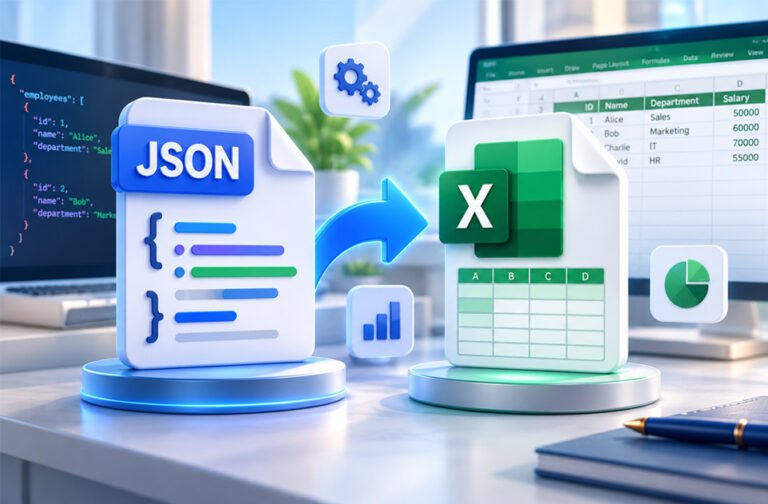
JSON is a common format used to store and share data. It is often used in APIs, websites, apps, and software.
However, JSON data can be difficult to read and analyze. Converting JSON to Excel makes the data easier to understand. You can organize it into rows and columns, sort it, filter it, and create reports.
This guide explains five easy ways to convert JSON to Excel. It also explains how to handle nested JSON, large files, and common conversion problems.
What Is JSON to Excel Conversion?
JSON to Excel conversion means changing data from JSON format into an Excel spreadsheet.
JSON stands for JavaScript Object Notation. It stores information using objects, arrays, keys, and values.
Here is a simple example:
[
  {"id": 1, "name": "Alice"},
  {"id": 2, "name": "Bob"}
]
After conversion, the Excel table may look like this:
| id | name |
|---|---|
| 1 | Alice |
| 2 | Bob |
Here, id and name become column headings. Each JSON object becomes a new row.
Excel makes this data easier to use. You can sort records, apply filters, make calculations, create charts, and prepare reports.
Developers may convert API data to Excel for checking or reporting. Data analysts may use it for analysis. Businesses may also use Excel because spreadsheets are easier to share with people who do not work with JSON.
Simple JSON is usually easy to convert. Complex JSON may need some changes before it fits properly into Excel.
How JSON Structure Affects Excel Conversion
JSON and Excel store data in different ways.
Excel mainly uses rows and columns. JSON can contain objects and arrays inside other objects and arrays. Because of this, some JSON files are easier to convert than others.
A JSON object uses curly brackets {}. A JSON array uses square brackets [].
For example:
[
  {"id": 1, "name": "Alice"},
  {"id": 2, "name": "Bob"}
]
This structure is easy to convert because it contains a list of similar records.
However, some JSON files look like this:
{
  "employees": [
    {"id": 1, "name": "Alice"},
    {"id": 2, "name": "Bob"}
  ]
}
Here, the main records are stored inside employees.
Some converters can find these records automatically. Others expect the file to start directly with an array. This is one reason a valid JSON file may not work correctly in some converters.
Nested JSON can also cause problems.
For example:
{
  "id": 1,
  "name": "Alice",
  "address": {
    "city": "San Francisco",
    "zip": "94105"
  }
}
Here, address contains more information inside it.
For Excel, this information can be changed into separate columns such as address.city and address.zip. This is called flattening the JSON.
1. Convert JSON to Excel Using Power Query
Microsoft Excel has a tool called Power Query. It can import JSON and turn it into a table without writing code.
Open Excel and go to:
Data → Get Data → From File → From JSON
Choose your JSON file and click Import.
The file will open in Power Query Editor. If the data appears as a list, choose To Table.
You may also see values called Record or List. Use the expand button to open these values and create separate columns. Deeply nested JSON may need to be expanded more than once.
When the table looks correct, choose Close & Load. Excel will add the data to a worksheet.
You can then save the file as .xlsx.
Advantages
- No coding is needed.
- Works inside Excel.
- You can check and clean the data before loading it.
- Records and lists can be expanded.
- Useful for people who already work with Excel.
Limitations
- You need Excel with the required Power Query features.
- It takes more steps than an online converter.
- Complex JSON can take more work.
- It is not the best choice for converting many files automatically.
2. Convert JSON to Excel Using an Online Converter
An online JSON to Excel converter is one of the easiest methods.
You normally open the tool in your browser and upload a JSON file or paste the JSON data. Some tools also support drag-and-drop or importing from a URL.
After adding the JSON, click the conversion button. The tool processes the data and gives you an Excel file to download.
This method is useful for small files and quick, one-time tasks.
Advantages
- Easy to use.
- No coding is needed.
- No software installation is needed.
- Works through a web browser.
- Usually fast for small files.
- Good for quick conversions.
Limitations
- You normally need an internet connection.
- Some tools have file-size limits.
- Complex JSON may not convert correctly.
- Some tools only support certain JSON structures.
- Uploading private data may create privacy risks.
Be careful when uploading sensitive JSON files. They may contain customer details, business information, API data, or other private records.
Check the website’s privacy policy before uploading sensitive files. You should also remove passwords, API keys, access tokens, and other secret information.
For private data, converting the file on your own computer may be a better option.
3. Convert JSON to Excel Using Python and pandas
Python is useful when you need to convert JSON files regularly or automatically.
One popular Python library for this job is pandas. It can turn JSON records into a table and then save that table as an Excel file.
First, install pandas and openpyxl:
pip install pandas openpyxlFor example, imagine your JSON looks like this:
{
  "employees": [
    {"id": 1, "name": "Alice"},
    {"id": 2, "name": "Bob"}
  ]
}
You can use this Python code:
import json
import pandas as pd

with open("employees.json", "r", encoding="utf-8") as file:
    data = json.load(file)["employees"]

df = pd.json_normalize(data)
df.to_excel("output.xlsx", index=False)
The code opens the JSON file and gets the records inside employees.
json_normalize() turns the records into a table. to_excel() then saves the table as an Excel file.
If your JSON already starts with an array, you do not need to select an employees field.
Python is useful when you have many files to convert or need to clean the data before creating the Excel file.
Advantages
- Good for automatic conversions.
- Useful for larger data tasks.
- Data can be cleaned before export.
- Can flatten many nested JSON objects.
- Useful for analytics and data processing.
Limitations
- Python must be installed.
- Some coding knowledge is needed.
- Complex nested data may need extra code.
- More work may be needed to create a nicely formatted Excel report.
4. Convert JSON to Excel Using Python and Spire.XLS
Spire.XLS is another option for converting JSON data with Python.
It is useful when you want more control over how the final Excel file looks.
For example, you can change fonts, column widths, row heights, alignment, headers, and other formatting.
Install the library with:
pip install spire.xlsThe basic process is simple. First, load the JSON data. Then choose the fields you want to use as Excel columns. Add the records to the worksheet and apply the required formatting.
You can also auto-fit columns and create different styles for headers and rows.
This method can be useful when you are automatically creating Excel reports that will be shared with clients or team members.
It needs more setup and code than a basic pandas conversion. If you only need a simple spreadsheet, pandas or Power Query may be enough.
5. Convert JSON to Excel Using Node.js and SheetJS
Node.js and SheetJS are useful for JavaScript developers.
This method can be used in web applications, backend systems, and automatic data-processing tasks.
First, install SheetJS:
npm install xlsxHere is a simple example:
const XLSX = require("xlsx");
const fs = require("fs");

const json = JSON.parse(fs.readFileSync("employees.json", "utf8"));
const data = json.employees;

const worksheet = XLSX.utils.json_to_sheet(data);
const workbook = XLSX.utils.book_new();

XLSX.utils.book_append_sheet(workbook, worksheet, "Employees");
XLSX.writeFile(workbook, "output.xlsx");
The code reads the JSON file and gets the employees records.
json_to_sheet() changes the records into a worksheet. The worksheet is then added to a workbook and saved as output.xlsx.
If your JSON starts directly with an array, you can use that array instead.
Complex JSON may need to be flattened before conversion.
This method is mainly useful for people who already use JavaScript or Node.js.
Which JSON to Excel Method Should You Use?
The right method depends on your data, skills, and needs.
| Method | Skill Level | Coding | Best For | Main Limitation |
|---|---|---|---|---|
| Power Query | Beginner | No | Working directly in Excel | Requires manual steps |
| Online converter | Beginner | No | Quick conversions | Privacy and file limits |
| Python with pandas | Intermediate | Yes | Automation and data processing | Requires Python knowledge |
| Python with Spire.XLS | Intermediate | Yes | Formatted Excel reports | Requires extra setup |
| Node.js with SheetJS | Intermediate | Yes | JavaScript projects | Requires Node.js |
For a quick one-time conversion, an online converter may be enough.
If you already use Excel, Power Query is a useful choice. Python works well for repeated conversions and larger data tasks. SheetJS is useful when your project already uses JavaScript.
How to Convert Nested JSON to Excel
Nested JSON contains information inside other objects or arrays.
For example:
{
  "id": 1,
  "name": "Alice",
  "address": {
    "city": "San Francisco",
    "zip": "94105"
  }
}
The address object contains city and zip.
After flattening, the Excel table could look like this:
| id | name | address.city | address.zip |
|---|---|---|---|
| 1 | Alice | San Francisco | 94105 |
Power Query can expand nested records into columns. Python’s pandas.json_normalize() can also flatten many nested objects.
Some JSON files contain different groups of data. For example, one file may contain customers, orders, and products.
In this case, it may be better to use separate Excel sheets for each group instead of putting everything into one table.
How to Convert Large JSON Files to Excel
Large JSON files can take more time and memory to process.
Excel also has a limit of 1,048,576 rows in one worksheet. If your JSON contains more records, they cannot all fit on one sheet.
For large files, Python or Node.js may give you more control.
You can:
- Remove fields you do not need.
- Process data in smaller groups.
- Split records across different worksheets.
- Create more than one Excel file.
- Test a small part of the data first.
For datasets with millions of records, Excel may not be the best place to store all the data. A database or another data system may be more suitable. You can then export smaller reports to Excel when needed.
Common JSON to Excel Problems and Fixes
Invalid JSON
Broken JSON may not convert.
Missing commas, quotation marks, or brackets are common causes. Check and validate the JSON first. Fix any errors and try again.
Valid JSON Is Rejected
A JSON file can be valid but still fail in some tools.
For example, the converter may expect a root array, while your records are inside another object. Check the structure and select or extract the correct array.
Empty Excel Output
This can happen when the tool cannot find the main records.
Check where the actual data is stored in the JSON. Make sure the correct array or object is being converted.
Records Appear in One Column
Nested objects may appear in one column instead of several columns.
Flatten the JSON or expand the nested records. Power Query and pandas can both help with this.
Power Query Shows List or Record
List and Record usually mean that more data is stored inside that value.
Use the expand button in Power Query to open it. Deeply nested data may need to be expanded several times.
Columns Are Missing or Uneven
JSON records do not always contain the same fields.
One record may have a phone number while another does not. The missing value may appear as an empty cell in Excel.
Check the original JSON before assuming data was lost.
Nested Data Looks Messy
Complex arrays and objects can create a difficult-to-read spreadsheet.
Flatten only the information you need. You can also put different groups of data on separate Excel sheets.
Large Files Are Slow or Fail
Large files may be too big for some online tools or may use too much memory.
Try Python or Node.js. You can also split the data into smaller parts or remove fields you do not need.
Excel Output Is Hard to Read
A converted file may contain the correct data but still look messy.
Check the column names, widths, data types, and layout. Add simple formatting if the spreadsheet will be shared with other people.
Tips for Better JSON to Excel Conversion
- Check that the JSON is valid before converting it.
- Find out whether the main data is an object or array.
- Keep similar records in the same structure when possible.
- Remove fields you do not need.
- Flatten nested data when needed.
- Use separate sheets for different groups of data.
- Test a small sample before converting a large file.
- Check numbers, dates, and text after conversion.
- Adjust column widths and headings for easier reading.
- Choose a method based on file size, privacy, and your technical skills.
Think about how you want the final spreadsheet to look before starting. This can make complex JSON easier to organize.
Is It Safe to Use an Online JSON to Excel Converter?
It depends on the website and the data you are uploading.
Public or test data usually creates fewer privacy concerns. Private business data, customer information, or internal records need more care.
Check the converter’s privacy policy before uploading sensitive data. Look for information about how files are stored and deleted.
Also check your JSON for passwords, API keys, access tokens, and other private information. Remove them before uploading the file.
For sensitive data, using Excel or a local Python or Node.js script can give you more control over your files.
Bottom Line
JSON to Excel conversion makes JSON data easier to read, organize, analyze, and share.
Online converters are useful for quick tasks. Power Query is a good no-code choice for Excel users. Python is useful for automation and larger data tasks. Node.js with SheetJS works well for JavaScript projects.
Before converting JSON to Excel, check the structure of your data. Valid and well-organized JSON usually gives you a cleaner Excel file.
Frequently Asked Questions
Can Excel convert JSON to Excel without another tool?
Yes. Excel can use Power Query to import JSON data and turn it into a worksheet.
What is the easiest way to convert JSON to Excel?
An online converter is usually the easiest for quick tasks. You can upload your JSON and download the Excel file.
How do I convert nested JSON to Excel?
You need to flatten or expand nested JSON. Power Query or Python can help organize it into columns.
Why does my JSON to Excel converter reject valid JSON?
Some tools only support certain JSON structures. For example, they may require the data to start with an array.
Can I convert JSON to Excel using Python?
Yes. Python libraries like pandas can turn JSON data into an Excel file.
Can JavaScript convert JSON to Excel?
Yes. You can use Node.js with SheetJS to convert JSON data into an Excel file.
Can I convert a large JSON file to Excel?
Yes, but you may need to split very large data into smaller parts or multiple sheets.
Is it safe to convert JSON to Excel online?
It depends on the website. Avoid uploading private or sensitive data to a tool you do not trust.
