


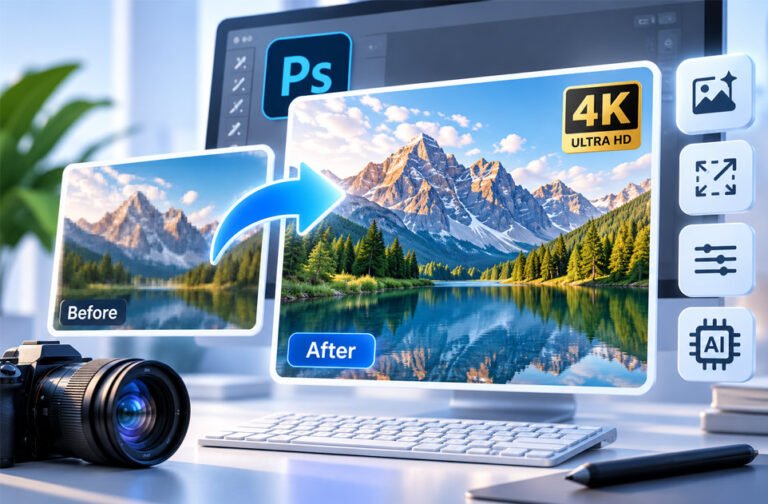
Increasing image resolution means adding more pixels to an image. People often do this when a photo is too small, blurry, or pixelated. A higher-resolution image can be more useful for printing, websites, social media, product pages, and other purposes.
There are different ways to increase image resolution. You can use a normal photo editor, Adobe Photoshop, or an AI image upscaler. However, making an image bigger does not always make it clearer.
This guide explains image resolution, how upscaling works, how AI can help, and the different ways you can increase image resolution.
What Is Image Resolution?
Image resolution tells you how many pixels are in a digital image. A pixel is a very small point of color. Millions of pixels can work together to create one image.
Resolution is normally shown as width × height.
For example, an image with a resolution of 1920 × 1080 pixels is 1,920 pixels wide and 1,080 pixels high.
An image that is 3000 × 2000 pixels has 6 million pixels, or about 6 megapixels.
In general, more pixels give you more image information. A high-resolution photo can usually be printed at a larger size. You can also crop it more without making it look pixelated.
A low-resolution image has fewer pixels. It may look fine when it is small. But if you make it much bigger, it may start looking blurry, soft, or blocky.
Image resolution is important for:
- Printing photos and posters
- Creating website banners
- Product photos
- Cropping images
- Restoring old photos
- Creating images for high-resolution screens
However, more pixels do not always mean better image quality.
For example, a blurry 4000 × 3000 photo is still blurry. Adding more pixels will not automatically restore the missing details.
Focus, lighting, noise, compression, camera quality, and the original file also affect image quality.
Pixels, PPI, and DPI: What Is the Difference?
Pixels, PPI, and DPI are all related to images, but they have different meanings.
Understanding these terms can help when you want to increase image resolution.
Pixels
Pixels are the small colored points that make up a digital image.
For example, a 2400 × 3000 pixel image contains about 7.2 million pixels.
For images used on phones, computers, websites, and social media, pixel dimensions are usually more important than DPI.
PPI
PPI means pixels per inch.
It tells you how many image pixels are used for each inch when an image is printed or shown at a certain physical size.
For example, imagine that your image is 3000 pixels wide and you print it 10 inches wide.
The calculation is:
3000 ÷ 10 = 300 PPI
Around 300 PPI is commonly used for high-quality photo printing.
However, every print does not need 300 PPI. Large posters may use a lower PPI because people normally look at them from farther away.
DPI
DPI means dots per inch.
DPI usually describes the number of dots a printer puts on paper.
This means DPI and PPI are not exactly the same.
People often use these terms in the same way, but PPI is normally more useful when talking about the resolution of a digital image.
Changing an image from 72 PPI to 300 PPI does not automatically make it clearer.
If you do not add more pixels, you are mainly changing its planned print size.
Calculating Resolution for Printing
You can use a simple calculation to find the image size needed for printing:
Print size in inches × PPI = required pixels
For example, an 8 × 10-inch image printed at 300 PPI needs:
8 × 300 = 2400 pixels
10 × 300 = 3000 pixels
So, an image of about 2400 × 3000 pixels is needed for an 8 × 10-inch print at 300 PPI.
What Happens When You Increase Image Resolution?
When you make an image larger, the software needs to create new pixels.
This process is called resampling.
For example, imagine you have an 800 × 600 pixel image. You increase it to 1600 × 1200 pixels.
The original image does not contain enough pixels for the new size. The software must create the missing pixels.
Traditional image editors do this using a method called interpolation.
The software looks at nearby pixels and calculates what the new pixels should look like.
This can work well for small changes. However, it has limits.
If you make a small image much larger, you may see:
- Blurry details
- Visible pixels
- Jagged edges
- More noise
- JPEG compression marks
- Soft details
- Unnatural sharpening
The quality of the original image is very important.
A sharp and clean photo usually gives better results than a tiny image that has already been compressed many times.
Resizing vs. Resampling
Resizing and resampling are related, but they are not exactly the same.
You can change the print size of an image without changing the number of pixels.
Resampling changes the actual number of pixels.
When you increase resolution through resampling, the software creates more pixels. When you reduce the resolution, it removes pixels.
This is why simply changing the PPI number does not always increase the real resolution of an image.
How AI Image Upscaling Works
AI image upscaling uses artificial intelligence to make an image larger.
Normal resizing creates pixels mainly by looking at nearby pixels. AI upscaling can also study the content of the image.
AI models can look at things such as:
- Edges
- Shapes
- Faces
- Hair
- Clothes
- Buildings
- Textures
- Other objects
The AI then predicts what a larger and more detailed version could look like.
Some modern AI upscalers use technologies such as convolutional neural networks and super-resolution models. Examples include SRGAN, ESRGAN, and Real-ESRGAN.
Depending on the tool, AI may also help with:
- Noise reduction
- Sharpening
- Face enhancement
- JPEG artifact removal
- Edge improvement
- Texture improvement
- Color correction
Some AI models are made for specific image types.
For example, an AI model for normal photos may work differently from one designed for anime, drawings, or game graphics.
This is why one AI upscaler may work better than another for a certain image.
AI Does Not Recover Every Original Detail
AI upscaling has limits.
If information is missing from the original image, AI cannot know exactly what was there.
Instead, it predicts what the missing details may have looked like.
For example, AI can make a blurry face look sharper. However, some new facial details may be created by the AI instead of being recovered from the original photo.
The same problem can happen with small text. If the words cannot be read in the original image, AI may create shapes that look like letters but are not correct.
AI can make an image look better, but it cannot always recover the real missing information.
How to Increase the Resolution of an Image With AI
Most AI image upscalers are simple to use.
First, find the best version of your image. An original photo usually gives better results than a compressed copy downloaded from social media or a messaging app.
Next, open the image in an AI upscaler. Online tools normally allow you to upload the image through your browser. Desktop tools process the image on your computer.
Choose how much you want to enlarge the image. Common choices include 2× and 4×.
For example, a 1000 × 750 pixel image enlarged by 2× becomes 2000 × 1500 pixels.
At 4×, it becomes 4000 × 3000 pixels.
Some tools also let you choose the image type, such as photo, portrait, illustration, or anime.
You may also find options for sharpening, noise reduction, face enhancement, and JPEG artifact removal.
Do not use the strongest settings automatically. Too much processing can make an image look unnatural.
After processing, check the image carefully.
Look at:
- Faces
- Eyes
- Hair
- Text
- Edges
- Small objects
- Textures
- Colors
Check the image at 100% zoom if possible.
If it looks unnatural, try a lower enlargement level or weaker enhancement settings.
When you are happy with the result, save the new image. Keep the original file as well.
How to Increase Image Resolution in Photoshop
Adobe Photoshop gives you several ways to increase image resolution.
For normal resizing, open your image and go to:
Image > Image Size
Here you can see the image width, height, and resolution.
Enter the new size you need.
When Resample is turned on, Photoshop can create or remove pixels when you change the image size.
Photoshop offers different resampling methods. Depending on the version, options may include Preserve Details and Bicubic Smoother.
After resizing, check the image at 100% zoom. A larger image does not always mean that more real detail has been added.
It is also a good idea to work on a copy instead of changing your only original image.
Using Photoshop Super Resolution
Adobe also offers Super Resolution through Camera Raw.
Super Resolution uses machine learning to create a larger image.
It can double the width and height of an image. This creates four times the total number of pixels.
For example, a 16-megapixel image can become about 64 megapixels.
The basic process is:
- Open the image with Adobe Camera Raw.
- Select Enhance.
- Choose Super Resolution.
- Process the image.
- Compare it with the original.
- Continue editing or save the final image.
The exact steps may be different depending on your Photoshop and Camera Raw version.
Sharpening After Upscaling
An enlarged image can sometimes look a little soft.
Photoshop provides sharpening tools that can help.
One option is Unsharp Mask. It increases contrast around edges and can make details look sharper.
Another option is High Pass sharpening. This method normally involves copying the image layer, applying the High Pass filter, and using a blend mode such as Overlay or Soft Light.
Do not use too much sharpening.
Strong sharpening can create bright or dark lines around objects. It can also make noise and skin texture look unnatural.
If the image has a lot of noise, light noise reduction may help. Again, avoid using too much because it can remove real details.
Best Tools for Increasing Image Resolution
There are many tools for increasing image resolution. Some work online, while others need to be installed on a computer.
Adobe Photoshop and Camera Raw
Adobe Photoshop provides normal image resizing and AI-assisted Super Resolution through Camera Raw.
It is useful for people who also need editing tools for sharpening, colors, noise reduction, retouching, and other changes.
Adobe Lightroom
Adobe Lightroom also provides Super Resolution.
It can be useful for photographers who already use Lightroom to organize and edit their photos.
Topaz Gigapixel
Topaz Gigapixel is made mainly for AI image enlargement and enhancement.
It can be useful for photographers, designers, and other users who often need to make images larger.
Upscayl
Upscayl is a free and open-source AI image upscaler.
It can process images on your computer. This means you do not always need to upload your images to an online service.
It can be useful for people who care about privacy or want a free desktop option.
Let’s Enhance
Let’s Enhance is an online image enhancement service.
It provides AI image upscaling and other enhancement features without requiring full desktop photo-editing software.
Its prices, limits, and available features can change, so check the current details before using it regularly.
Waifu2x
Waifu2x is an image upscaling and noise-reduction tool originally designed for anime-style images.
It is especially useful for anime, drawings, illustrations, and similar digital artwork.
Icons8 Upscaler
Icons8 provides an online AI image upscaler.
It is designed for people who want a simple way to enlarge an image without using advanced photo-editing software.
Free limits and paid options can change over time.
Vidmore Free Image Upscaler
Vidmore provides an online AI image upscaling tool.
It can be useful if you want a simple browser-based tool instead of a full program such as Photoshop.
Check its current limits and privacy terms before uploading private images.
ON1 Resize
ON1 provides image resizing and enlargement tools as part of its photography software.
It can be useful for photographers who need more control when preparing images for larger sizes or printing.
No single upscaling tool is best for every image. Photos, portraits, drawings, screenshots, and old images can give different results.
Free vs. Paid Image Upscalers
Free image upscalers can be enough for simple or occasional work.
However, some free online tools may limit:
- Number of images
- File size
- Output resolution
- Batch processing
- AI models
- Advanced settings
Paid tools may provide more controls, higher limits, batch processing, faster workflows, and more AI models.
Free tools can be useful for personal photos, simple graphics, and occasional image enlargement.
Paid tools may be more suitable for photographers, designers, online stores, printing businesses, and people who process many images.
Prices and plans can change, so always check the latest information from the tool provider.
How Much Can You Increase Resolution Without Losing Quality?
There is no fixed enlargement level that works perfectly for every image.
AI tools commonly offer options such as 2× and 4×.
The quality of the original image matters a lot.
A clear and sharp photo may still look good after a large increase. A tiny and blurry JPEG may start looking unnatural even after a smaller increase.
Making an image bigger again and again also has limits. More pixels do not always mean more real detail.
It is usually better to enlarge an image only as much as you actually need.
How to Fix Common Image Quality Problems
Increasing resolution can help, but an image may also have other problems such as blur, pixelation, noise, or damage.
Blurry Images
Slightly blurry images may improve with sharpening or AI deblurring.
A photo that is completely out of focus is harder to fix. AI can make it look cleaner, but it cannot perfectly restore details that were never captured.
Pixelated Images
Pixelation happens when a small image is shown at a much larger size.
AI upscalers can smooth blocky areas and improve edges. Some tools can also reduce JPEG compression marks.
Noise and Grain
Noise often appears in photos taken in low light or at high ISO settings.
AI noise reduction can help remove some of this grain while keeping useful details.
Do not use too much noise reduction. Strong settings can make skin and other surfaces look too smooth.
Old and Scanned Photos
Old photos may have low resolution, faded colors, dust, scratches, or other damage.
Start with the best original photo available. If you are scanning a printed photo, create a good-quality scan and keep an untouched copy.
You can then use upscaling, sharpening, noise reduction, color correction, and restoration tools.
Use gentle settings so important details do not change.
Screenshots and Digital Art
Screenshots, anime, drawings, and digital art may work better with AI models designed for illustrations.
PNG is often a good format for screenshots and graphics because it uses lossless compression and supports transparency.
Tools such as Waifu2x may work well for some types of digital artwork.
Increasing Resolution for Printing
Printing is a common reason for increasing image resolution.
Around 300 PPI is often used as a target for high-quality photo printing.
However, the right PPI depends on the print size, printer, type of print, and viewing distance.
You can calculate the required pixels using:
Print size in inches × PPI = pixels needed
For an 8 × 10-inch print at 300 PPI:
8 × 300 = 2400 pixels
10 × 300 = 3000 pixels
This means you need about 2400 × 3000 pixels.
Large posters may use a lower PPI because people usually view them from farther away.
For an important print, make a test print first. This can help you find problems with noise, sharpness, or colors before making the final large print.
Increasing Resolution for Web and Social Media
Web images normally do not need the same resolution as printed images.
Pixel dimensions and file size are more important.
Websites and social media platforms may resize or compress images after you upload them. Starting with a clean image at the right size can help it stay sharp.
Do not make web images much larger than needed. Very large files can make websites load more slowly.
For example, if you need an image for a website banner, increase it only to the size needed for that banner.
JPEG is widely used for photos. PNG is useful for graphics, text, and transparency. WebP and AVIF can also provide good quality with smaller file sizes for websites.
Social media image sizes can change, so check the current recommended dimensions for the platform you use.
Other Common Uses for Image Upscaling
Image upscaling has many uses.
Online stores can use it to make product images clearer for larger product pages and zoom views.
Photographers and designers can enlarge older photos for portfolios, presentations, posters, and marketing materials.
Old family photos can be enlarged for printing or digital storage.
Designers can increase the resolution of small images when they need to use them for larger website banners or designs.
AI upscaling can also help improve old game textures for modern displays.
Illustrations, anime images, and digital artwork can also be enlarged using AI models designed for these types of images.
Best File Format After Increasing Resolution
The best format depends on how you will use the image.
JPEG is a good choice for most photos. It creates smaller files, but it uses compression that can reduce quality.
PNG uses lossless compression. It is useful for screenshots, graphics, logos, text, and transparent images.
TIFF is often used for professional photography and printing. It can keep high image quality, but the files can be large.
WebP and AVIF are useful for websites because they can provide good quality with smaller file sizes.
Avoid using very strong compression after upscaling. Heavy compression can reduce the quality you gained from increasing the resolution.
Tips for Better Upscaling Results
For better results:
- Use the best-quality original image.
- Avoid heavily compressed copies.
- Choose an AI model that matches the image type.
- Do not always choose the largest enlargement.
- Try different settings if the first result looks strange.
- Check the image at 100% zoom.
- Look carefully at faces, hair, text, and small details.
- Watch for strange lines around sharpened objects.
- Check small text for incorrect letters.
- Avoid too much sharpening.
- Avoid too much noise reduction.
- Keep the original image.
- Save the enlarged image as a new file.
- Try another upscaler if an important image does not look right.
Common Mistakes to Avoid
Do not assume that more pixels always mean better quality.
A large image can still be blurry or noisy.
Avoid increasing resolution more than you need. Extreme enlargement can create fake-looking details and very large files.
Always use the best original image available instead of a heavily compressed copy.
Do not use too much sharpening. It can create unnatural edges and make noise more visible.
Too much noise reduction can also remove useful details.
Check AI-enhanced faces carefully. AI may change small details in eyes, teeth, hair, skin, or other areas.
Also be careful with small text. AI may make unreadable text look sharper without making the words correct.
Always keep your original image.
Limitations of Increasing Image Resolution
Increasing image resolution has limits.
A very small image does not contain much information.
For example, increasing a 100 × 100 pixel image to 800 × 800 creates many more pixels. However, it does not create all the real details that would have been captured by an 800 × 800 original image.
AI predicts what missing details might look like. These details may look realistic, but they may not be accurate.
Severe blur is also difficult to fix. If the camera did not capture the detail clearly, AI cannot perfectly restore it.
Heavy JPEG compression can also remove information. AI may reduce the visible compression marks, but it cannot always restore everything that was lost.
Small text is another problem. If the letters cannot be read in the original, AI cannot reliably know what they should say.
Faces can also change during strong AI enhancement.
This is especially important for historical photos, documents, evidence, medical images, or anything where exact details matter.
Increasing resolution can make an image look better, but it cannot guarantee that missing information has been recovered correctly.
Privacy, Safety, and Copyright
Online AI upscalers usually require you to upload your image to their servers.
Before uploading a private or sensitive image, check the service’s privacy policy and terms.
Look for information about how your images are stored, how long they are kept, and how they may be used.
If privacy is important, a desktop tool that processes the image on your computer may be a better choice.
Copyright rules also apply to upscaled images.
Making an image larger does not make it yours.
Upscaling, sharpening, or improving a copyrighted image does not automatically give you permission to publish, sell, or reuse it.
Use images you own, properly licensed images, public-domain images, or images you have permission to use.
Bottom Line
There are several ways to increase image resolution.
Traditional resizing adds pixels using calculations. AI upscaling uses trained models to predict details and create a larger image.
Photoshop provides normal resizing and AI-assisted options. There are also many dedicated AI image upscalers for photos, drawings, old images, product photos, and other content.
For better results, always start with the best-quality original. Increase the resolution only as much as you need and check the finished image carefully.
Remember that making an image larger and recovering real missing detail are different things. AI can make an image look clearer, but it cannot always know what was really present in the original.
Frequently Asked Questions
Can I increase the resolution of an image without losing quality?
Yes, AI upscaling can make an image larger with less quality loss. However, very large increases may still affect quality.
Does increasing resolution make an image clearer?
It can make an image look clearer, especially with AI. However, adding more pixels cannot always fix a blurry photo.
How can I increase image resolution for free?
You can use free tools like Upscayl or Waifu2x. Some online AI upscalers also offer free options.
Can Photoshop increase image resolution?
Yes. You can use Image > Image Size or Adobe’s Super Resolution feature to increase image resolution.
Is 300 DPI good for printing?
Around 300 PPI is commonly used for high-quality photo printing. The best setting can depend on the print size and use.
Is AI upscaling better than normal resizing?
AI upscaling can give better results because it tries to improve details. Normal resizing mainly adds new pixels based on existing ones.
Can AI fix a very blurry or pixelated photo?
AI can improve some blurry or pixelated photos. However, it cannot fully restore details that are missing from the original.
Does increasing image resolution affect copyright?
No. Increasing resolution does not change who owns an image. You still need permission to use copyrighted images.
