


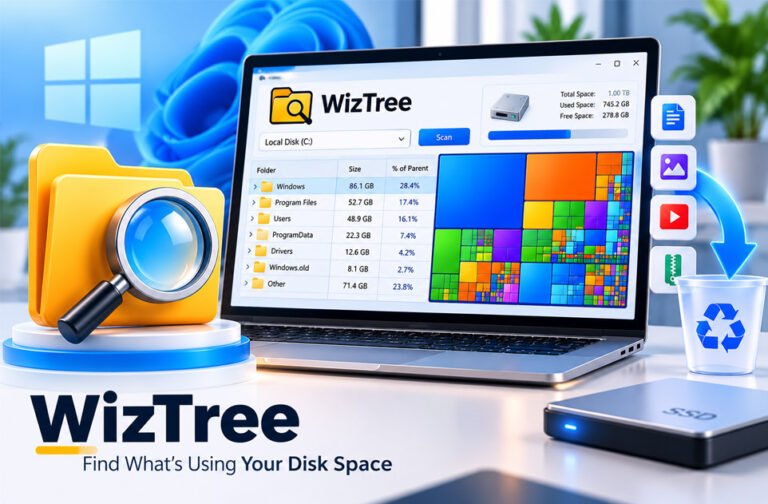
WizTree is a disk space analyzer for Windows. It helps you find files and folders that are using a lot of storage space.
People often use WizTree when their computer is running out of space. It scans the drive and shows where the storage is being used.
This guide explains how WizTree works, its main features, speed, pricing, safety, and other useful details.
What Is WizTree?
WizTree is a Windows program that shows how your storage space is being used. It helps you find large files and folders on your drive.
A computer can contain thousands or even millions of files. Checking every folder by hand can take a long time. WizTree makes this process much easier.
For example, you may find an old backup, large video, ZIP file, or download that is taking up several gigabytes.
WizTree helps you find these files, but it does not decide what you should delete. Always check a file before removing it.
The program can be useful for normal PC users, developers, technicians, and IT workers.
How Does WizTree Work?
First, choose the drive you want to check. WizTree scans it and collects information about its files and folders.
It then shows which folders and files are using the most space. You can sort the results and open folders to see what is inside them.
WizTree also has a visual tool called a treemap. It makes large files easy to notice.
How WizTree Uses the Master File Table
Windows commonly uses a file system called NTFS. An NTFS drive contains something called the Master File Table (MFT).
The MFT keeps records about files and folders stored on the drive.
WizTree can read this table directly when checking an NTFS drive. This helps it collect file information very quickly.
This method is one of the main reasons WizTree can scan NTFS drives so fast.
Other file systems work differently, so scan speed may not always be the same.
Why Is WizTree So Fast?
WizTree is known for its fast scanning.
On NTFS drives, it reads information from the Master File Table instead of checking every folder in the normal way. This can save a lot of time.
WizTree also handles the scan results efficiently. This makes it easy to sort and explore files after the scan is finished.
One source reported that WizTree scanned a 1 TB drive in about 11 seconds. This was one person’s test, so other users may get different results.
Speed depends on the drive, file system, computer hardware, number of files, and other factors.
Main Features of WizTree
WizTree has several tools for finding files and understanding disk usage.
Fast Disk Scanning
WizTree can scan NTFS drives very quickly because it reads information from the Master File Table.
This is useful when checking a large drive with many files.
File and Folder Size Information
WizTree shows how much space each file and folder is using.
You can open folders to see which files inside them are taking up the most space.
Large File Identification
WizTree makes large files easy to find.
These may include videos, backups, ZIP files, disk images, downloads, and other large items.
A large file is not always an unwanted file. Check what it is before deleting it.
Sorting and Filtering
You can sort the results to find large files more easily.
Filters can also help you narrow down the results when your drive contains many files.
Treemap Visualization
WizTree includes a visual treemap.
Large files appear as larger blocks, making them easy to notice.
File Management Options
WizTree provides options for working with files found during a scan.
For example, you can open a file’s location in Windows Explorer, copy its path, or delete it.
Be careful when deleting system or program files.
Installer and Portable Versions
WizTree comes in installer and portable versions.
The installer adds the program to your computer. The portable version can run without a normal installation.
WizTree Treemap Explained
The treemap is a visual way to see how your storage is being used.
Files appear as rectangular blocks. A large block usually represents a large file, while a small block represents a smaller file.
Different colors can also help show different types of files.
This makes it easier to notice large files that may be hidden inside several folders.
You can select a block to learn more about the file it represents.
However, a large block does not mean the file should be deleted. It may still be an important Windows, program, or personal file.
WizTree Interface and File Views
WizTree shows file information and visual storage information in the same interface.
You can open folders and see how much space they are using. You can also view details such as file size, percentage of storage used, number of items, and modification information.
Columns can be sorted to make files easier to find.
The folder view is useful when you know where you want to look. The treemap is useful when you want to quickly find large files.
You can also open file locations in Windows Explorer.
How to Use WizTree
Using WizTree is simple.
Download and Launch
Download WizTree from its official source.
You can choose the installer or portable version. Install or open the program and select the drive you want to check.
Scan a Drive
Choose your drive and start the scan.
WizTree will check the storage and show the results. On NTFS drives, this process can be very fast.
Find Large Files and Folders
Sort the results by size to find the biggest files and folders.
You can also use the treemap. Large blocks make storage-heavy files easier to notice.
Always check the file name and location before deleting anything.
Clean Up Disk Space
After finding large files, decide which ones you no longer need.
You may want to check old downloads, videos, backups, ZIP files, ISO files, and installation files.
Be careful with files inside Windows, Program Files, ProgramData, and other system folders.
If you no longer need a program, uninstall it through Windows instead of simply deleting its folder.
Supported Platforms and Drives
WizTree is mainly made for Windows.
The information reviewed does not show native versions for macOS, Linux, Android, or iOS.
WizTree works especially well with NTFS drives because it can read their Master File Table.
Other storage devices may also work when Windows can access them. However, the scanning method and speed can be different depending on the file system.
Users with unusual drives or older Windows versions should check the latest compatibility information from WizTree.
WizTree Pricing and Licensing
WizTree is free for personal, non-commercial use.
This means home users can use it for personal disk analysis without paying.
Business and commercial use may require a paid license.
Prices and license rules can change. Business users should check the latest official WizTree pricing before buying a license.
Distribution License
A distribution license may be needed when WizTree is included with another product or shared as part of another service.
The price found in one supplied source was incomplete. Users should check the official WizTree licensing information for current details.
Is WizTree Safe to Use?
WizTree needs access to file and folder information because it analyzes disk space.
It is best to download the program from its official website. Avoid unknown download websites because they may provide old or changed installers.
The biggest risk is deleting the wrong file.
Some Windows and program files can be very large but still be important. Removing them may cause Windows or an application to stop working correctly.
Always check the file name and location before deleting anything.
WizTree Privacy
WizTree reads information about files and folders to calculate disk usage.
People concerned about privacy should check WizTree’s latest privacy information for details about data collection, updates, and online features.
WizTree is a disk analysis program, not a cloud storage service.
Privacy rules can change as software is updated, so the latest official information is the best source.
Benefits of WizTree
WizTree has several useful benefits:
- Fast scanning of NTFS drives
- Easy way to find large files
- Clear treemap view
- Sortable file information
- Simple folder navigation
- Installer and portable versions
- Free personal use
- Helpful when a drive is almost full
It can save time because you do not need to check every folder manually.
Drawbacks and Limitations
WizTree is mainly made for Windows. Mac, Linux, Android, and iOS users will need other tools.
Its fastest scanning method is connected to the NTFS file system. Other file systems may work differently.
WizTree also cannot decide which files you truly need. A large file may be useless, or it may be very important.
The interface may also look a little busy to new users because it shows many file details.
Business users also need to follow its commercial licensing rules.
Common Uses for WizTree
People commonly use WizTree when their Windows drive is running out of space.
It can help find old downloads, videos, backups, archives, installation files, and other large items.
Developers can use it to check large project folders, virtual machine files, databases, caches, and build files.
It can also help before moving data to another drive. Users can quickly see which folders take up the most space.
Tips for Using WizTree Safely
- Scan first: Understand what is using the space before deleting anything.
- Sort by size: Look at the largest files first.
- Check the location: See where a file is stored before removing it.
- Use the treemap: Large blocks can help you find large files quickly.
- Check personal files first: Look at downloads, videos, backups, ZIP files, and ISO files.
- Avoid unknown system files: Be careful with Windows and program folders.
- Keep backups: Back up important files before a major cleanup.
- Uninstall programs correctly: Use Windows’ uninstall option instead of deleting program folders.
Do not delete a file only because it is large.
WizTree Alternatives
There are other tools that can also show how disk space is being used.
WinDirStat
WinDirStat is a disk space analyzer for Windows.
It also has a treemap that helps users find large files and folders. It is free and open-source.
People who want an open-source tool may prefer WinDirStat. WizTree may be more useful when fast NTFS scanning is important.
TreeSize
TreeSize is another Windows disk space analyzer.
It shows the size of files and folders and offers different storage management features. Some features depend on the TreeSize edition.
It may suit users who want more storage management or reporting tools.
Other Options
Windows also has built-in storage tools.
These may be enough for people who only want basic information about what is using their storage.
When choosing a disk analyzer, compare its speed, features, file-system support, price, privacy, and ease of use.
WizTree vs WinDirStat vs TreeSize
All three tools can help users find files and folders that are using disk space.
| Feature | WizTree | WinDirStat | TreeSize |
|---|---|---|---|
| Main use | Disk analysis | Disk analysis | Disk analysis and management |
| Windows | Yes | Yes | Yes |
| Treemap | Yes | Yes | Available |
| Free option | Personal use | Yes | Free edition |
| Portable option | Yes | Depends on version | Depends on edition |
| Good for | Fast disk scans | Open-source analysis | Extra storage tools |
WizTree is a good choice when fast NTFS scanning is important.
WinDirStat may suit users who want a free, open-source option. TreeSize may suit people who need its extra storage tools.
The best option depends on what features you need.
Common WizTree Problems and Troubleshooting
A Drive Does Not Appear
First check whether Windows can see the drive.
Open File Explorer or Disk Management. If the drive is not available there, the problem may not be related to WizTree.
For an external drive, try reconnecting it or using another USB port.
WizTree Cannot Access Some Files
Windows permissions can block access to some files.
WizTree may need the correct permissions to check certain locations. Be careful when working with protected files.
A Scan Is Slower Than Expected
Scan speed can depend on the drive, file system, number of files, connection, and computer hardware.
The fast MFT method mainly applies to NTFS drives. Other file systems may take longer.
Disk Usage Looks Different Than Expected
File size and the actual space used on a drive can sometimes be different.
If a result looks unusual, check the file or folder before deleting anything.
The Portable Version Does Not Work as Expected
Make sure all portable files were extracted correctly.
If needed, download a fresh copy from the official source and try again.
WizTree Stops Working or Behaves Unexpectedly
Restart WizTree and check for a newer official version.
If the problem continues, note any error message and which drive was being scanned.
Bottom Line
WizTree is a Windows disk space analyzer that helps users find large files and folders.
Its ability to read the Master File Table makes scanning NTFS drives very fast. The treemap also makes it easier to see where storage space is being used.
WizTree is free for personal, non-commercial use. Business use has separate licensing rules.
The program can help you find large files, but you should always check a file before deleting it.
Frequently Asked Questions
What is WizTree?
WizTree is a Windows tool that shows which files and folders are using the most space on your drive.
Is WizTree free?
Yes. WizTree is free for personal use, but businesses may need to buy a license.
Why is WizTree so fast?
WizTree reads file information directly from NTFS drives. This helps it scan your storage very quickly.
Is WizTree safe?
Yes, when downloaded from the official source. Be careful and check important files before deleting them.
Does WizTree delete files automatically?
No. WizTree helps you find large files, but you choose what you want to delete.
Does WizTree work on Windows 11?
WizTree is made for Windows. Check the official website for the latest Windows 11 support details.
Can WizTree find large files?
Yes. WizTree shows file sizes and uses a visual treemap to make large files easy to find.
Is WizTree better than WinDirStat?
It depends on your needs. WizTree is known for fast scanning, while WinDirStat is a free, open-source tool.
